
Minimum Requirements
Facebook Account
Have an active Facebook account, required to create the business portfolio used in the integration.
facebook.comIt can be an old or new personal account. Create one at facebook.com if you don't have one. A personal email is enough.
WhatsApp Business App
Have WhatsApp Business installed and working on a phone to enable the connection with Carecode.
If you're already on the official API, you can skip this tutorial. The number must be operational, without bans. WhatsApp Web can coexist.
Business Portfolio
Access Business Manager
Go to business.facebook.com with your Facebook account and create your first business portfolio if you haven't already.
business.facebook.comIf you already have a business portfolio created and operational, you can skip this step and move to the next one. Otherwise, Meta will suggest creating one — follow the flow.
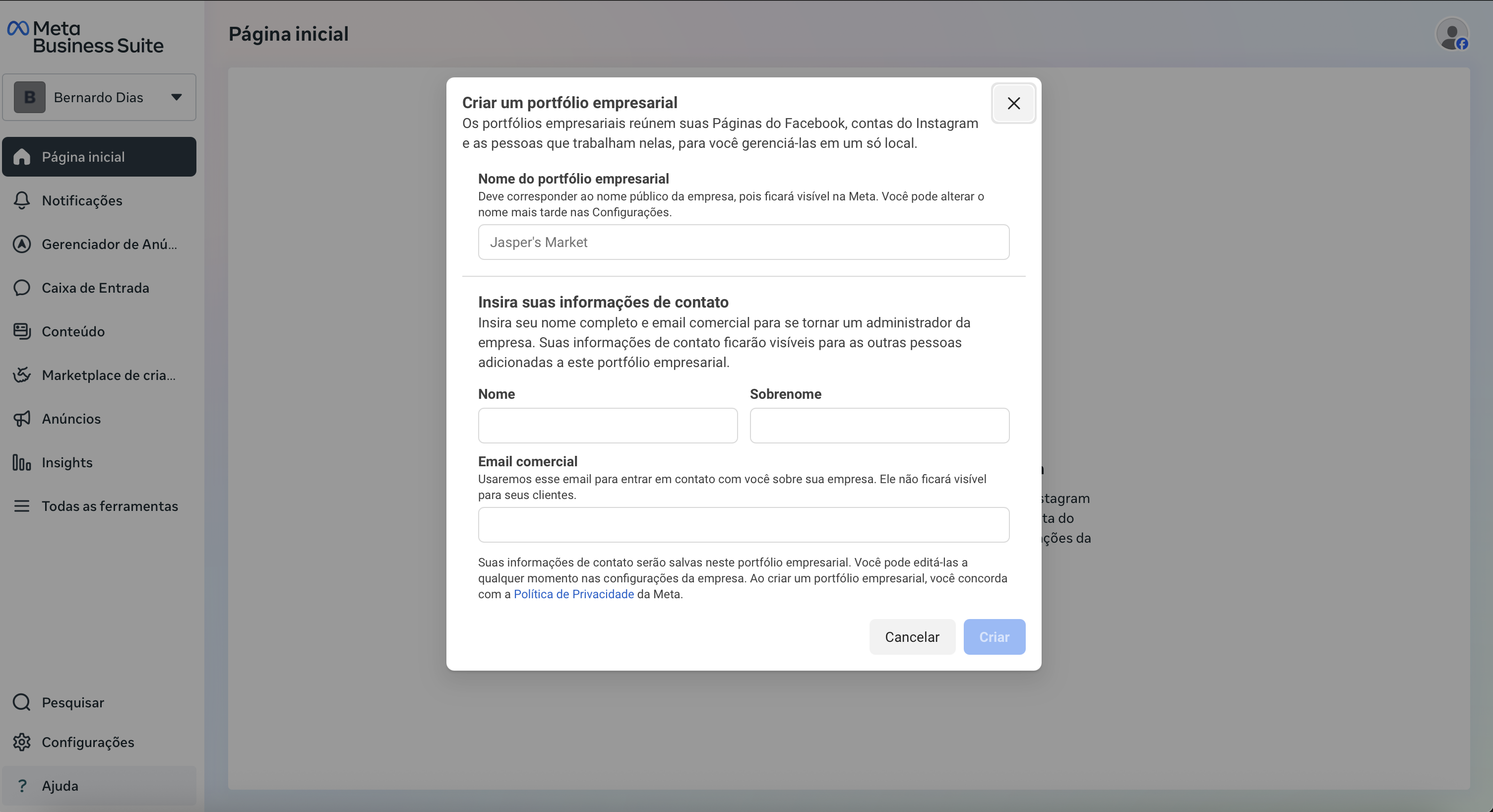
Select your portfolio
Select the business portfolio that will be linked to Carecode.
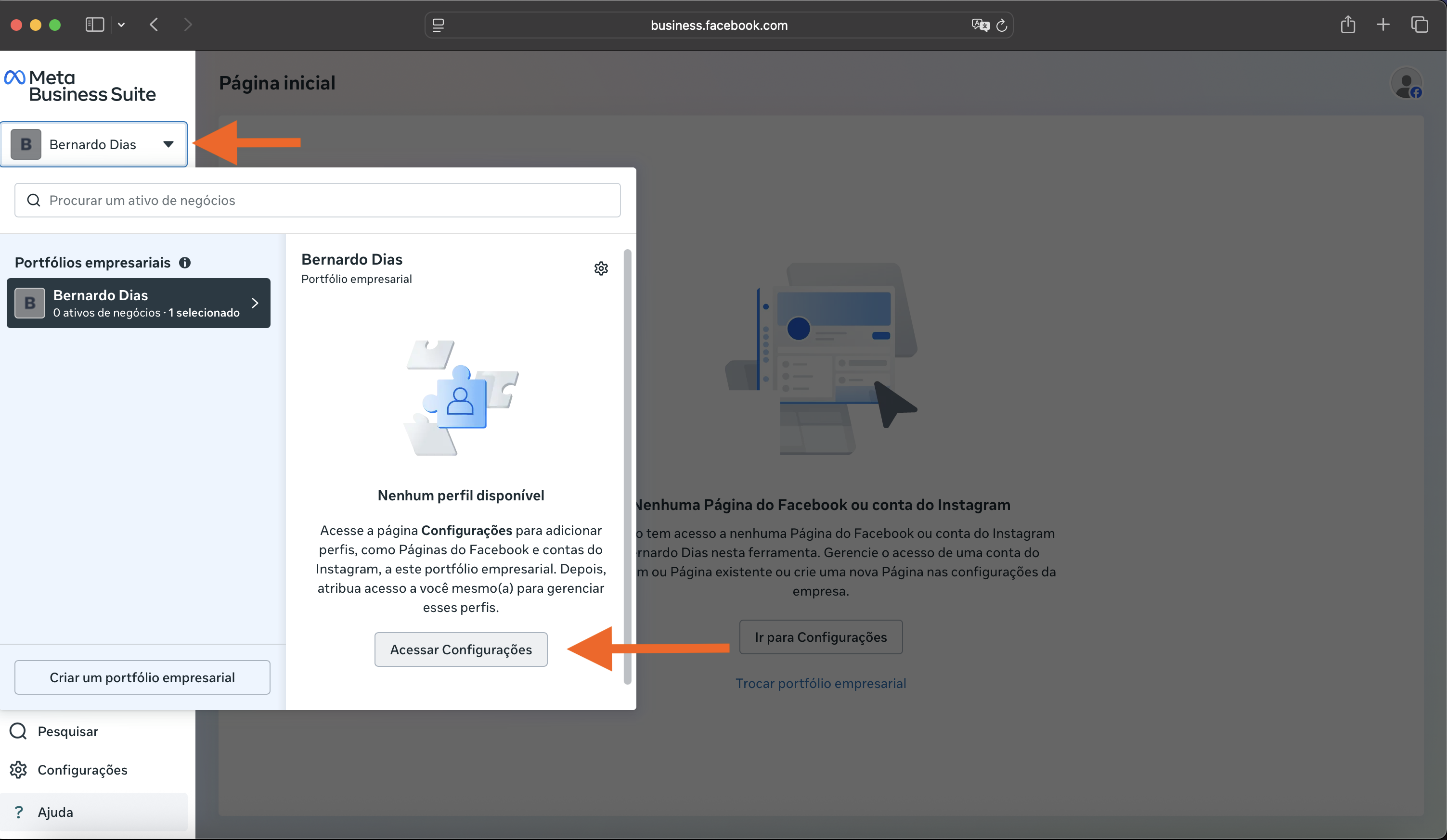
Click the portfolio selector at the top of the business.facebook.com page, select your portfolio, and click 'Access Settings'. The result should look similar to the second image below.
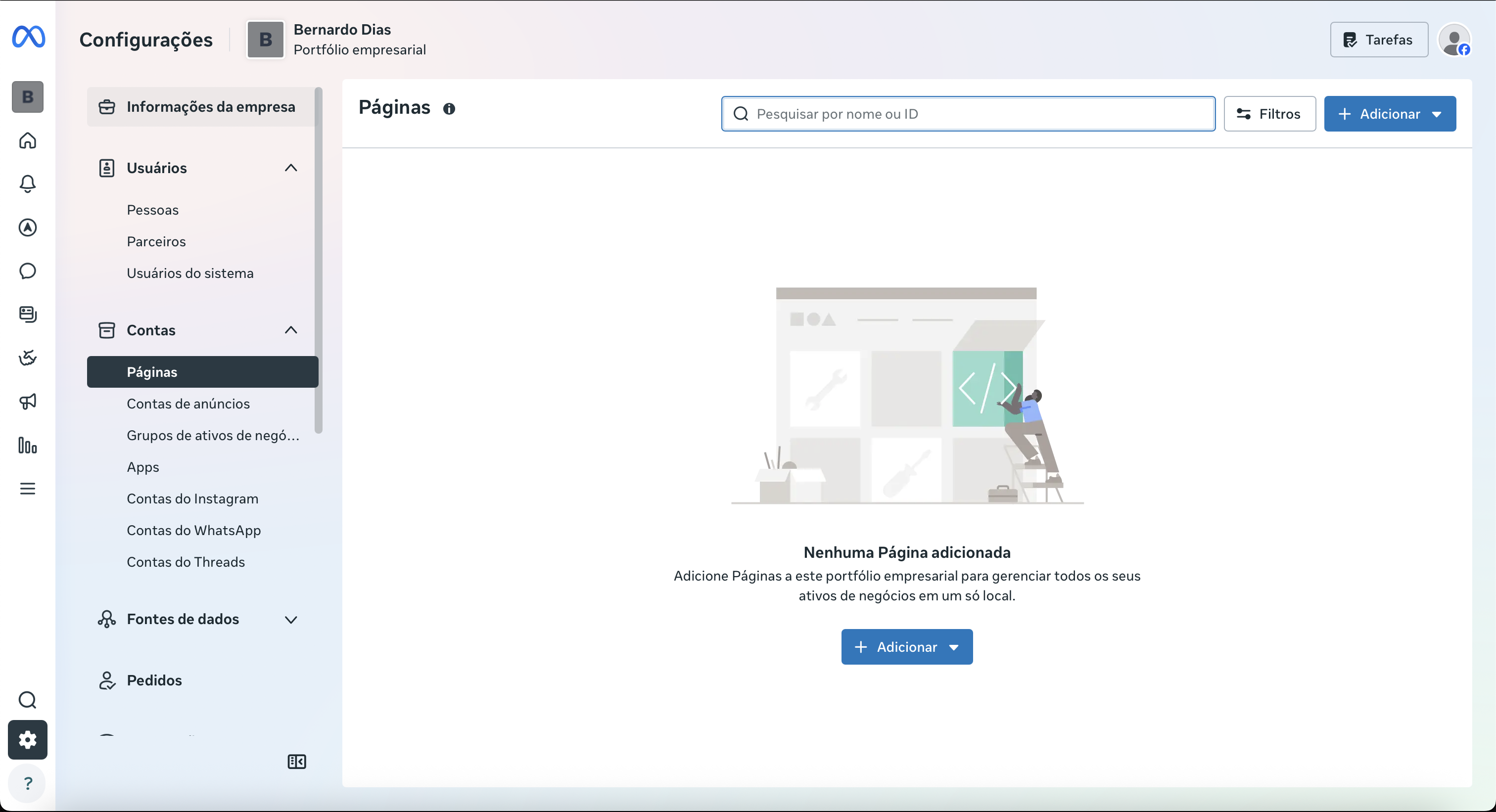
After clicking the "Settings" button, you should be taken to the page below:
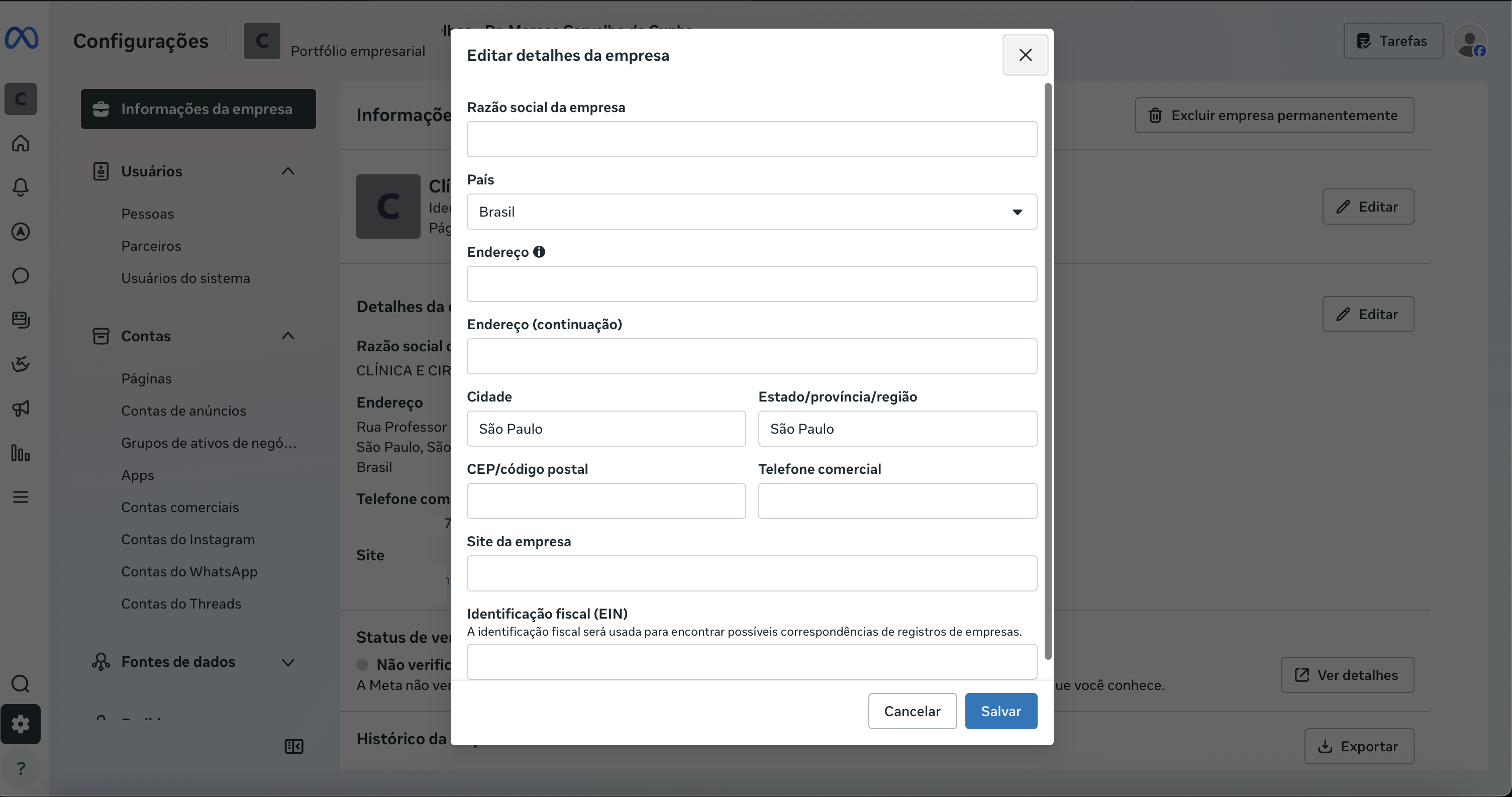
Fill in Business Information
Fill in your company details under Settings > Business Info so Meta can validate your business.
business.facebook.com/settings/infoFill in: Legal Name, Full Address, Phone (can be the WhatsApp number), and Website. If you don't have a website, use Instagram or another reference page. Ideally, the clinic should have its own domain.
Meta Connection
This step is done inside the Carecode platform, at v2.carecode.ai/onboarding/channel (during onboarding) or v2.carecode.ai/whatsapp/manage (if you already have an account). When you click connect WhatsApp, a Meta modal will open.
Connect WhatsApp to Carecode
Connect your WhatsApp to Carecode through our portal.
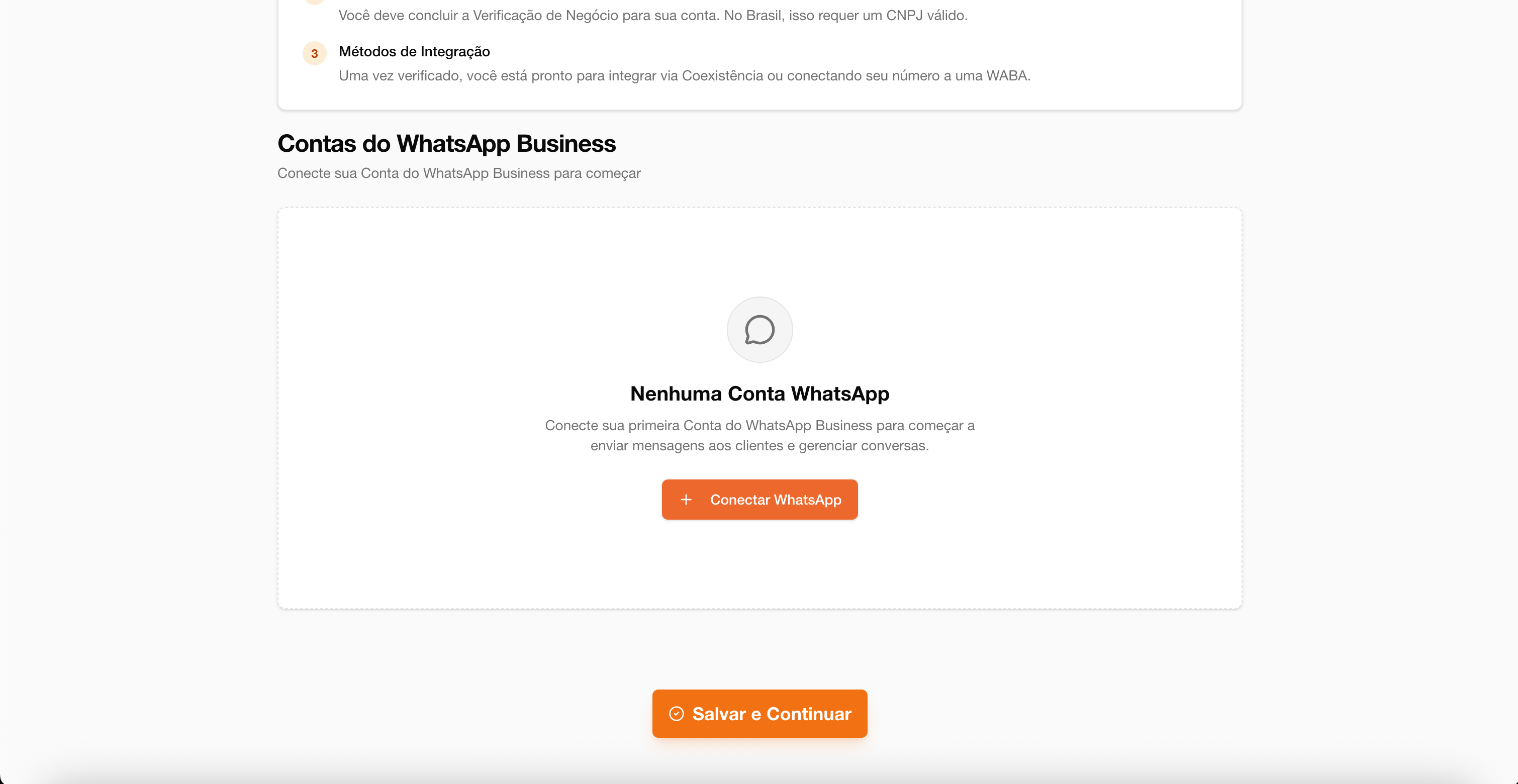
On the WhatsApp page (during onboarding at v2.carecode.ai/onboarding/channel or for already configured clients at v2.carecode.ai/whatsapp/manage), click Connect WhatsApp, as shown in the image below:
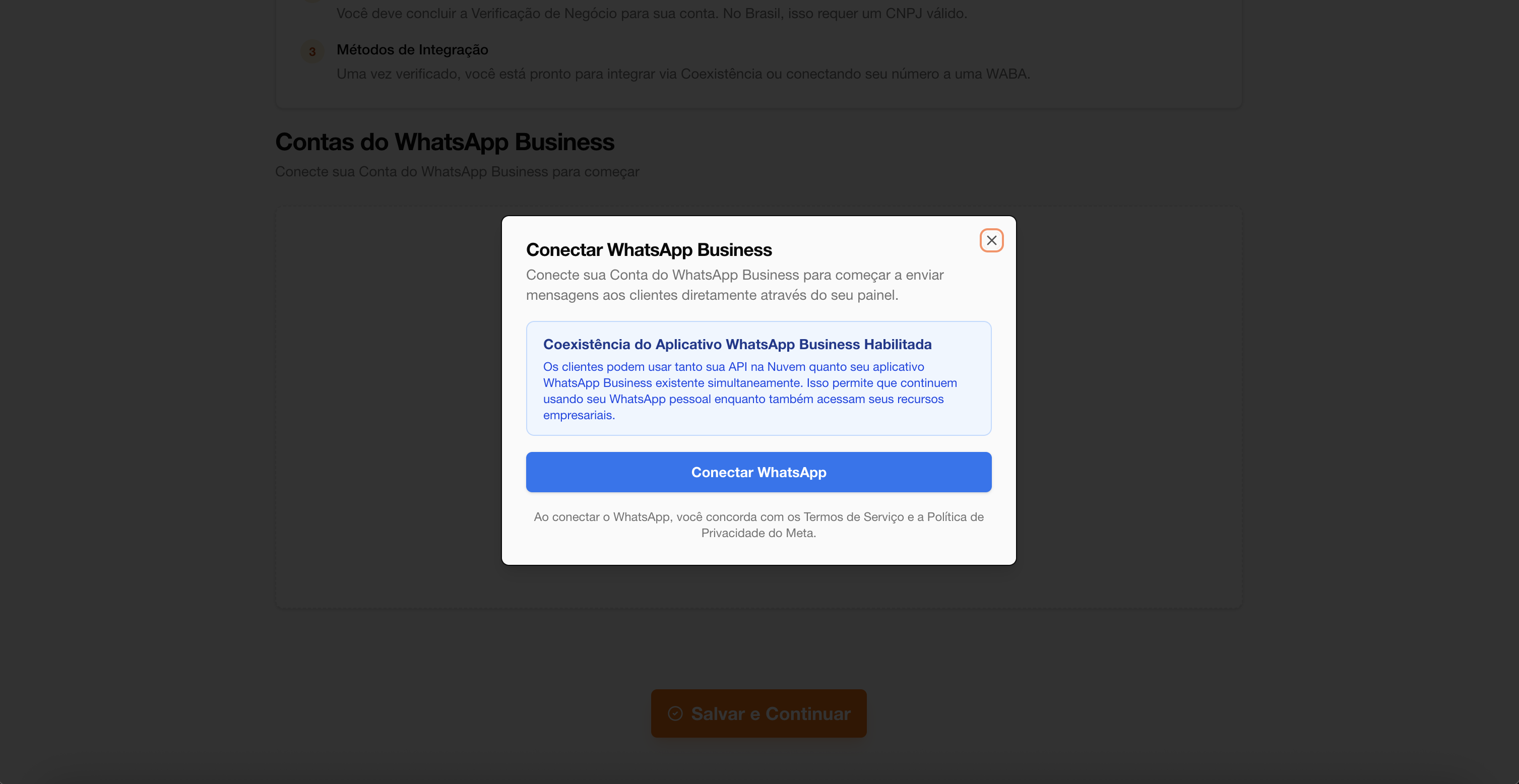
It opens Meta's dialog, as below:
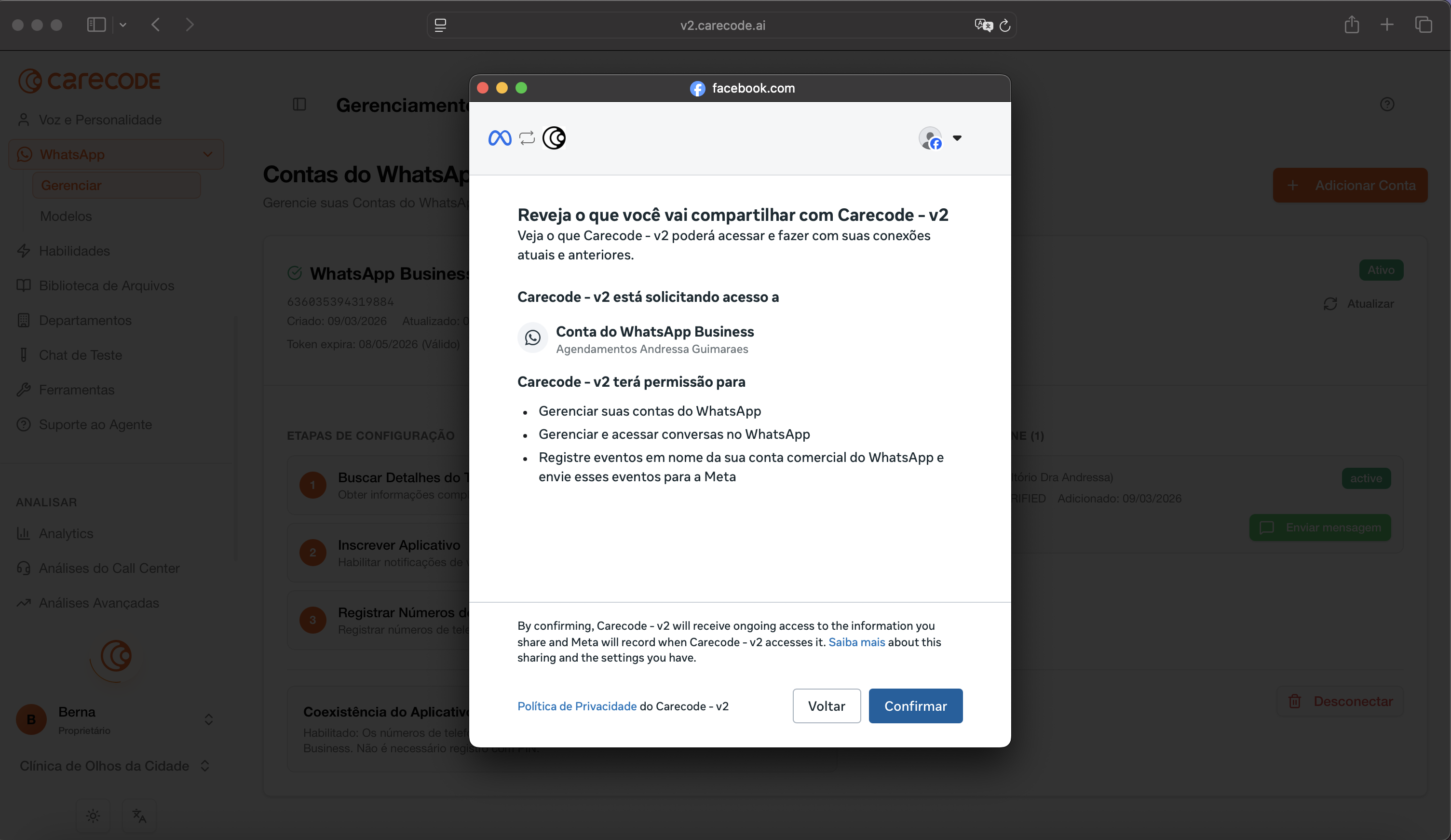
Accept Carecode and select portfolio
Accept Carecode's permissions and select the portfolio created previously.
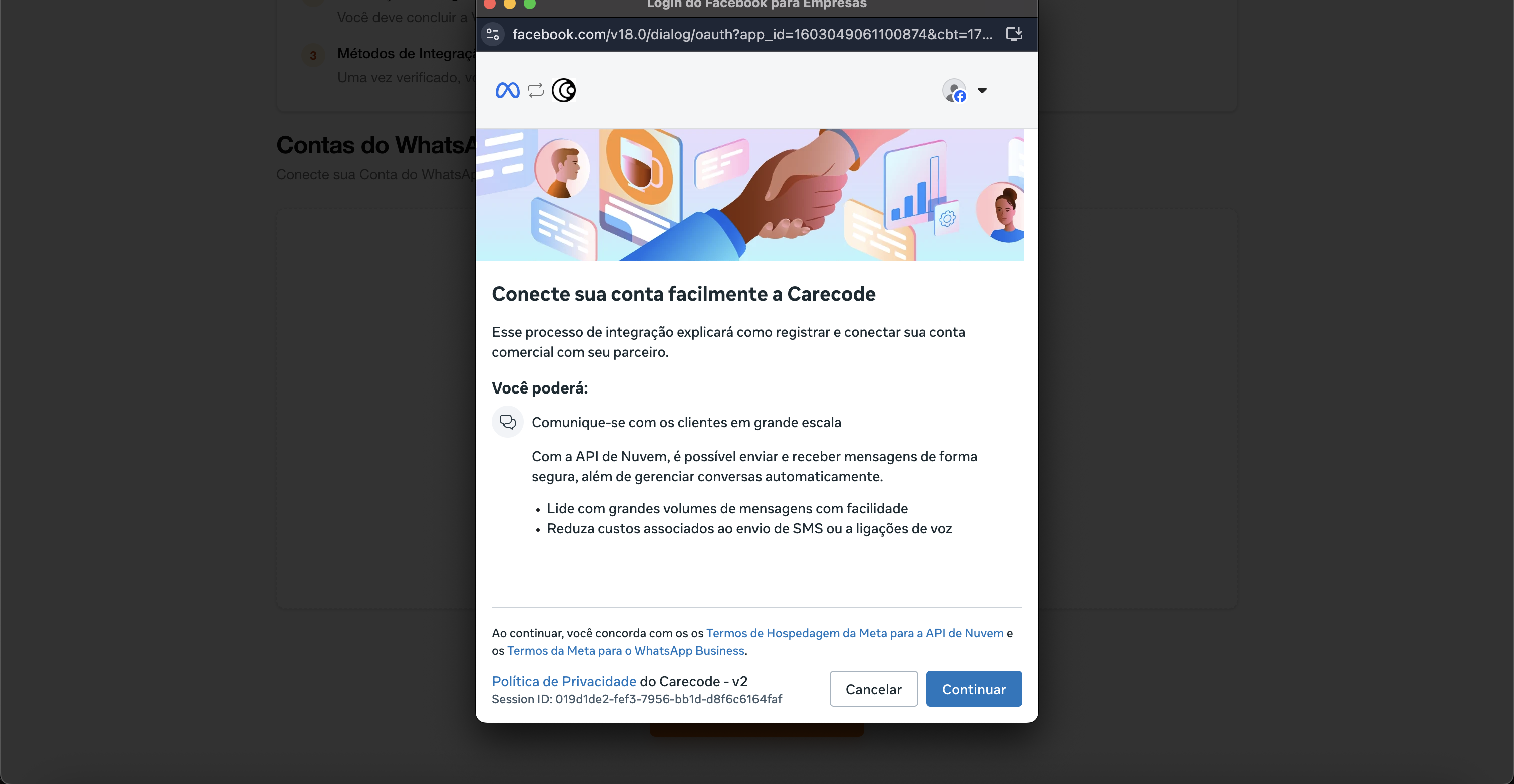
In the Meta modal, accept the permissions requested by Carecode and select the business portfolio you created in the previous step, as shown in the image below:
Connect WhatsApp Business App
Select the option 'Connect a WhatsApp Business App'.
Enter the phone number, selecting the country and area code correctly.
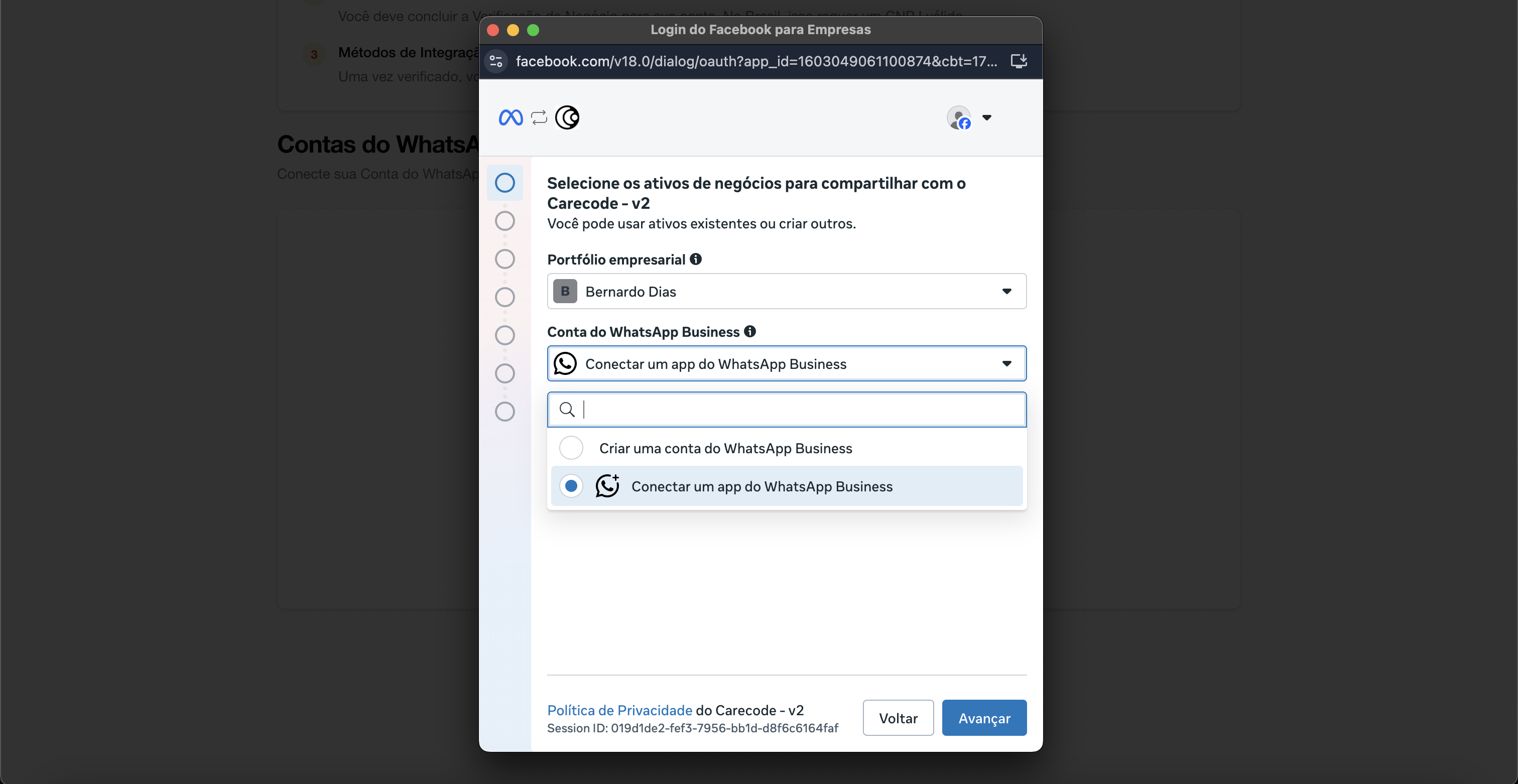
Then enter the phone number, selecting the right country and area code.
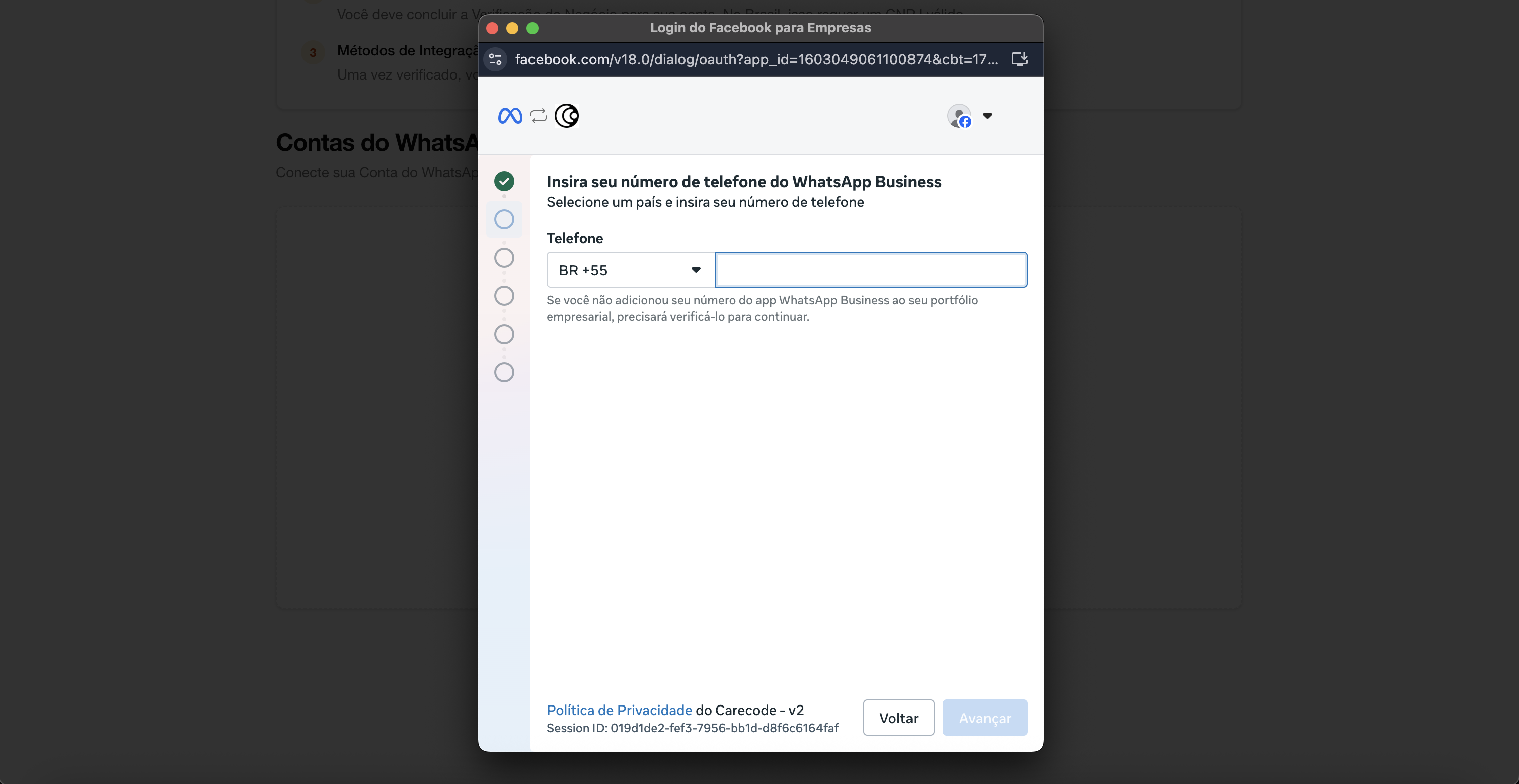
Permissions and phone confirmation
Grant Carecode permission to access conversations and read the QR Code or enter the code received on your phone.
The required permissions must be accepted, as shown in the image below:
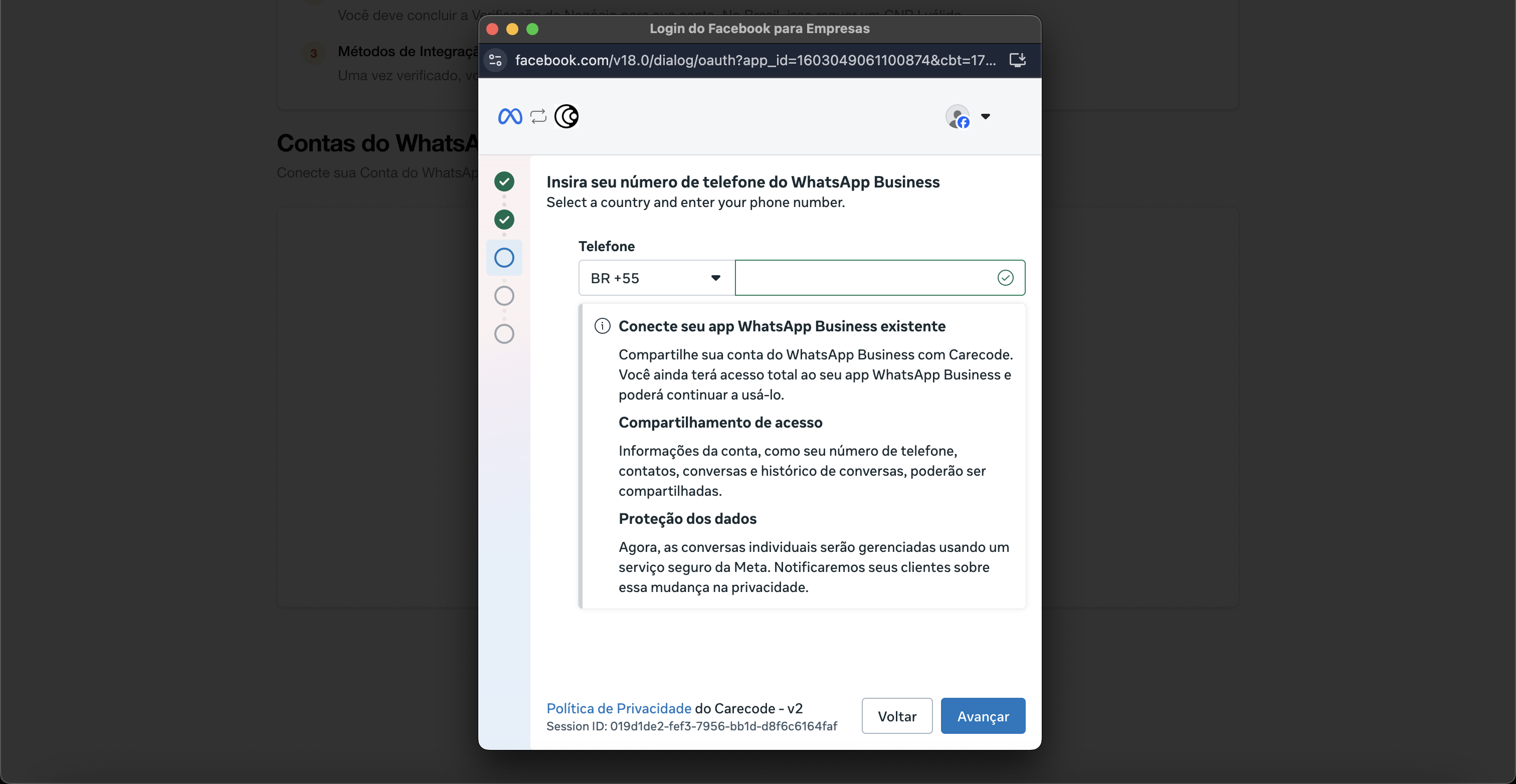
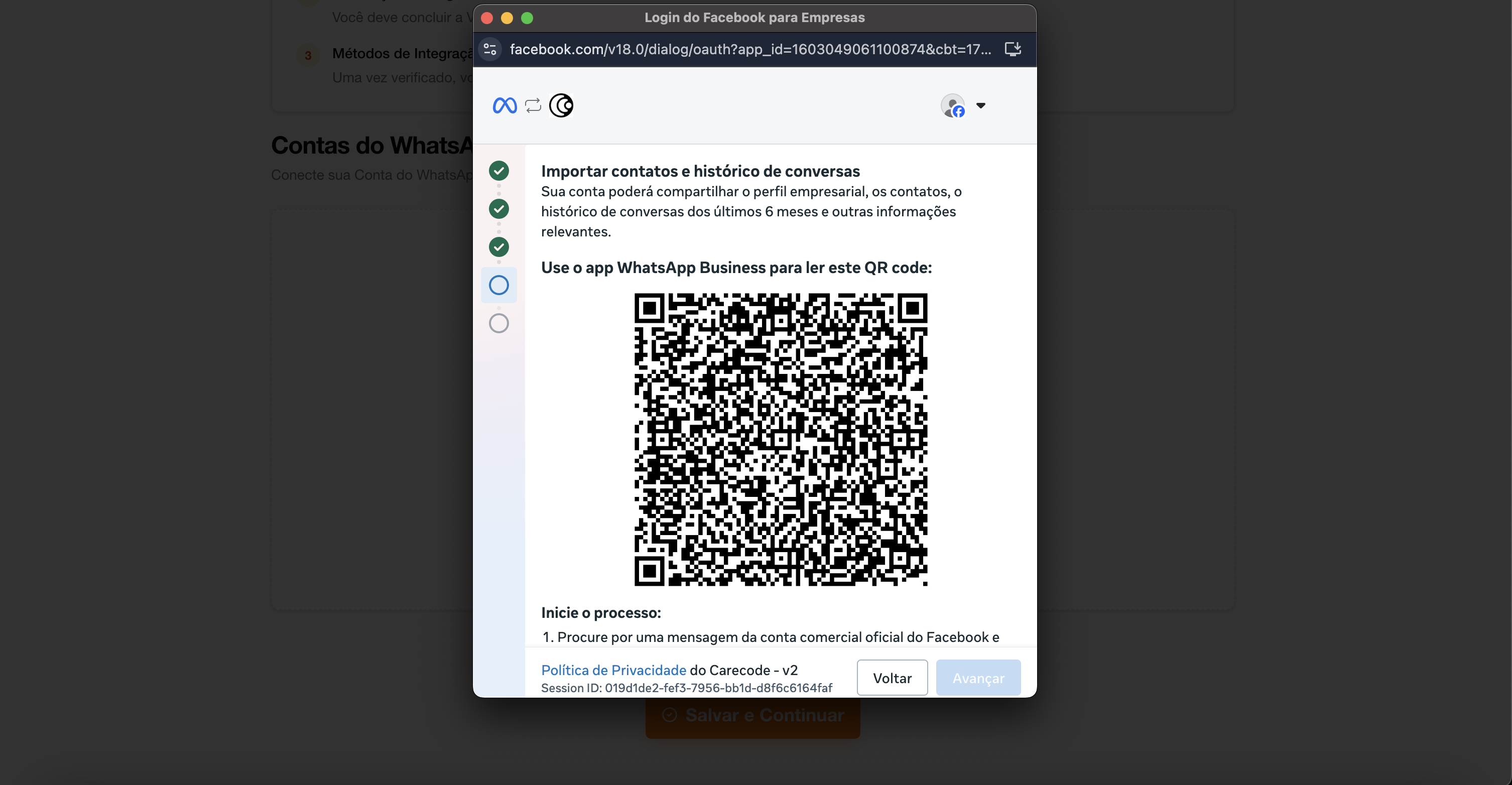
Once you accept them, Facebook sends a WhatsApp message to the chosen number and generates a QR code. Optionally, scroll down and choose to type a code instead.
After this step, accept the permissions, pick the right time zone ("America/Sao_Paulo" or another that fits) and click next
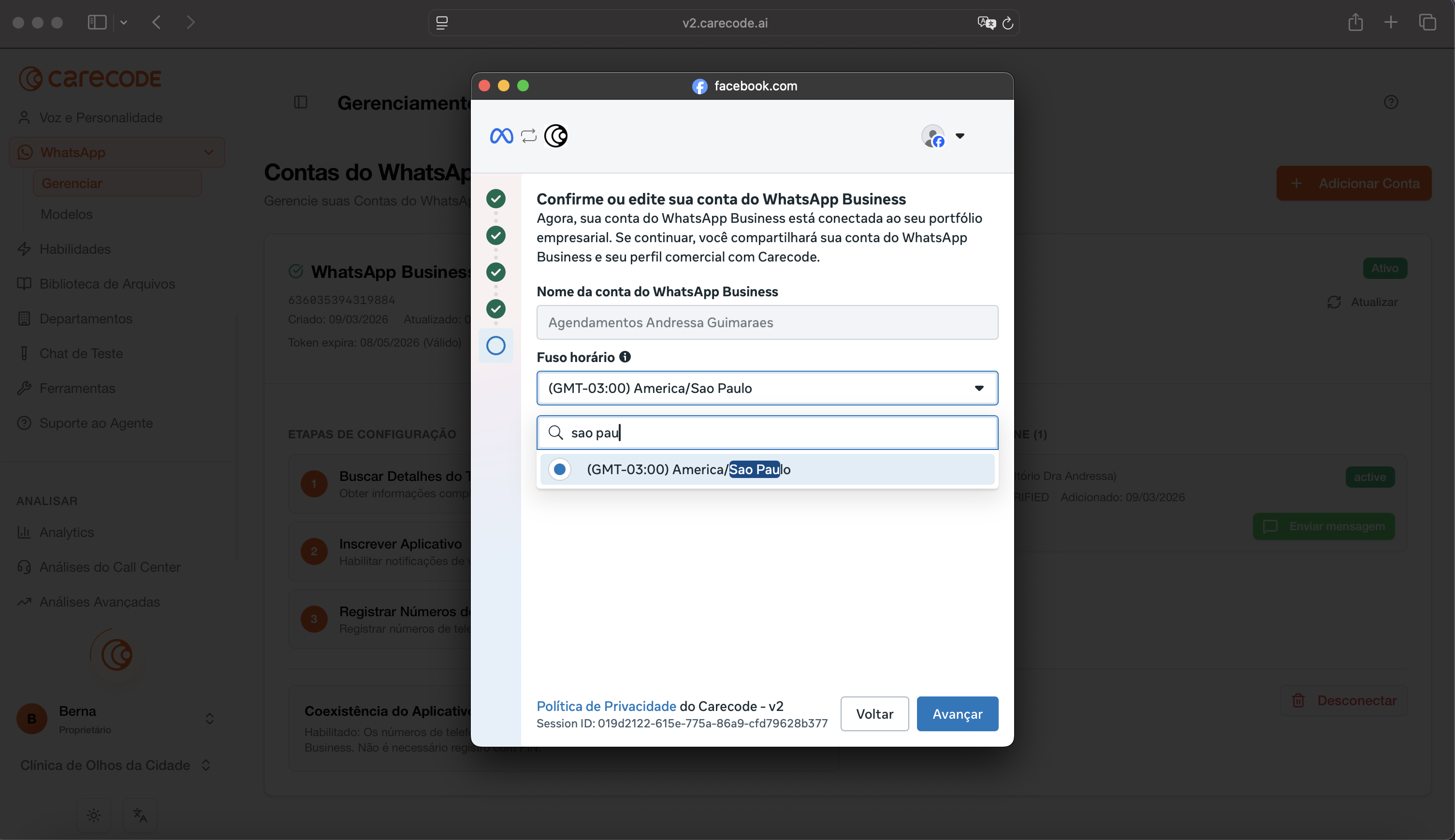
Completing the connection process
Finalize the process on the Carecode page
Click confirm and wait for the Meta/Facebook modal to close Important: do not close the Facebook tab. Wait until the modal closes automatically.
Press the run buttons on 1. Buscar detalhes do telefone (fetch phone details) and 2. Inscrever aplicativo (subscribe app). When it works, the portal looks like this:
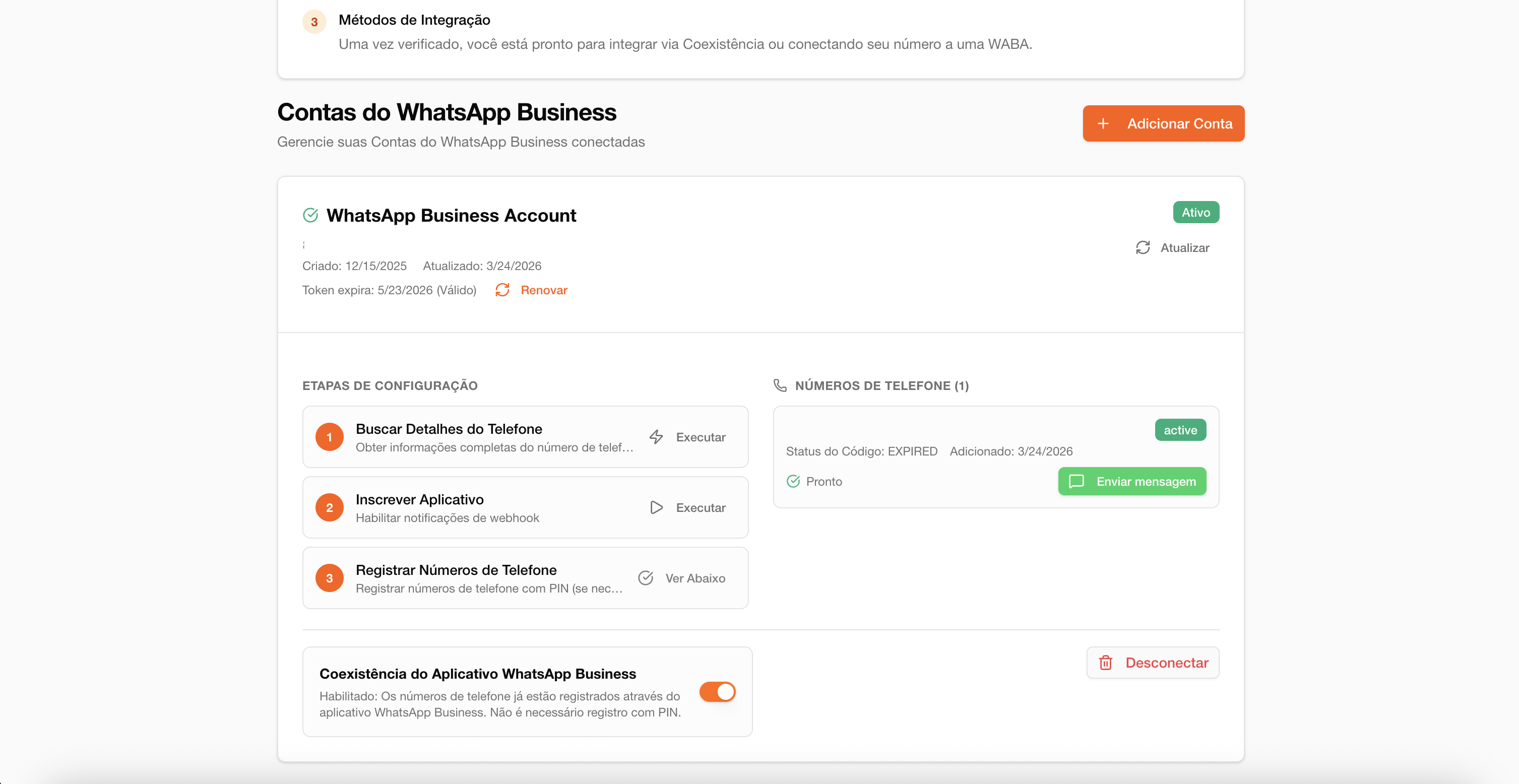
If the process fails, start over from the beginning.
Business Verification
Verification prerequisites
Make sure you have everything ready before starting verification, which unlocks unlimited messaging.
You will need:
Access Business Verification
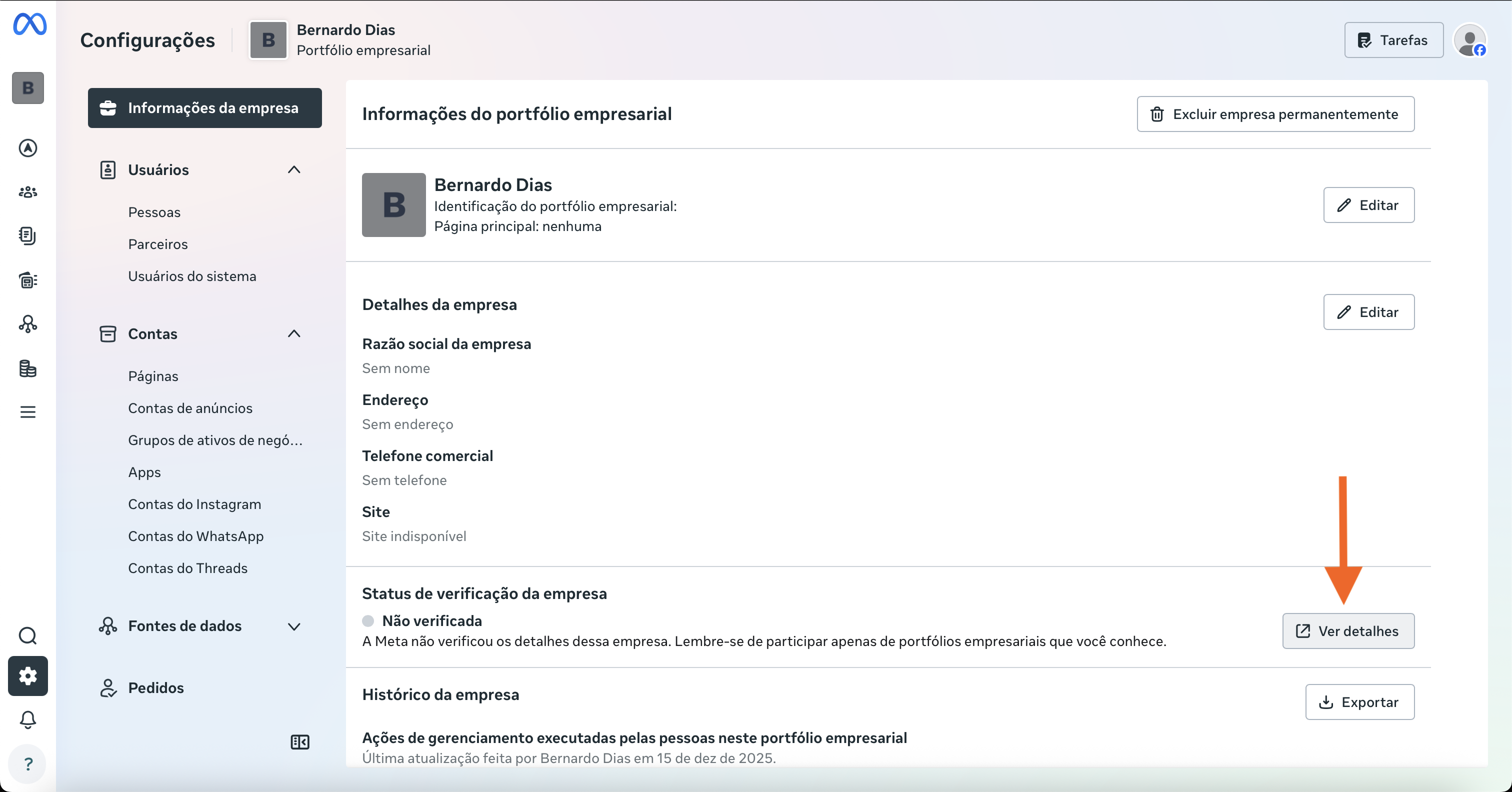
Start the business verification by clicking View Details and then Start Verification (or Continue) on the page that opens.
business.facebook.com/latest/settings/business_infoOn the business.facebook.com/latest/settings/business_info page, click Business Verification and then View Details.
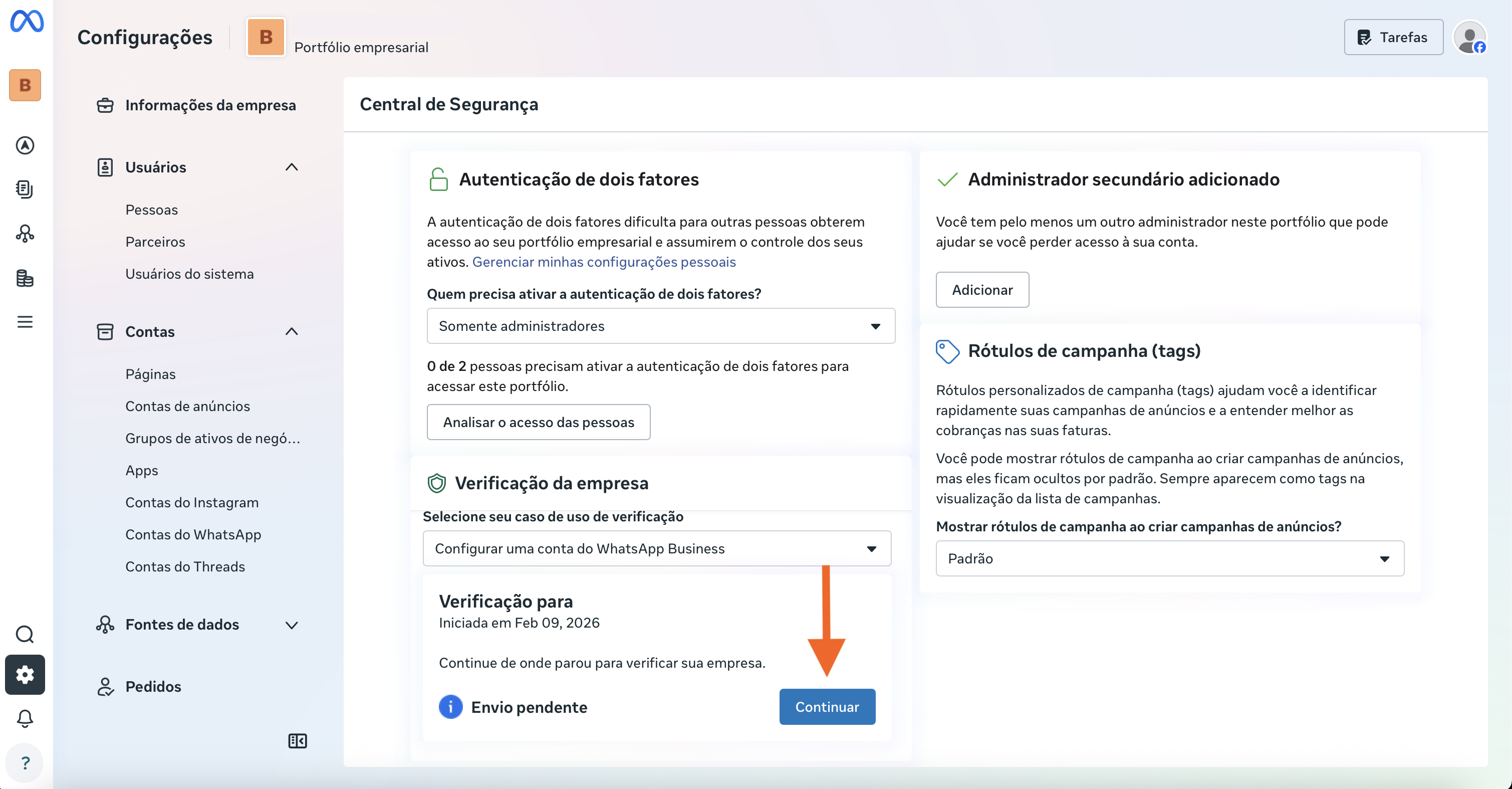
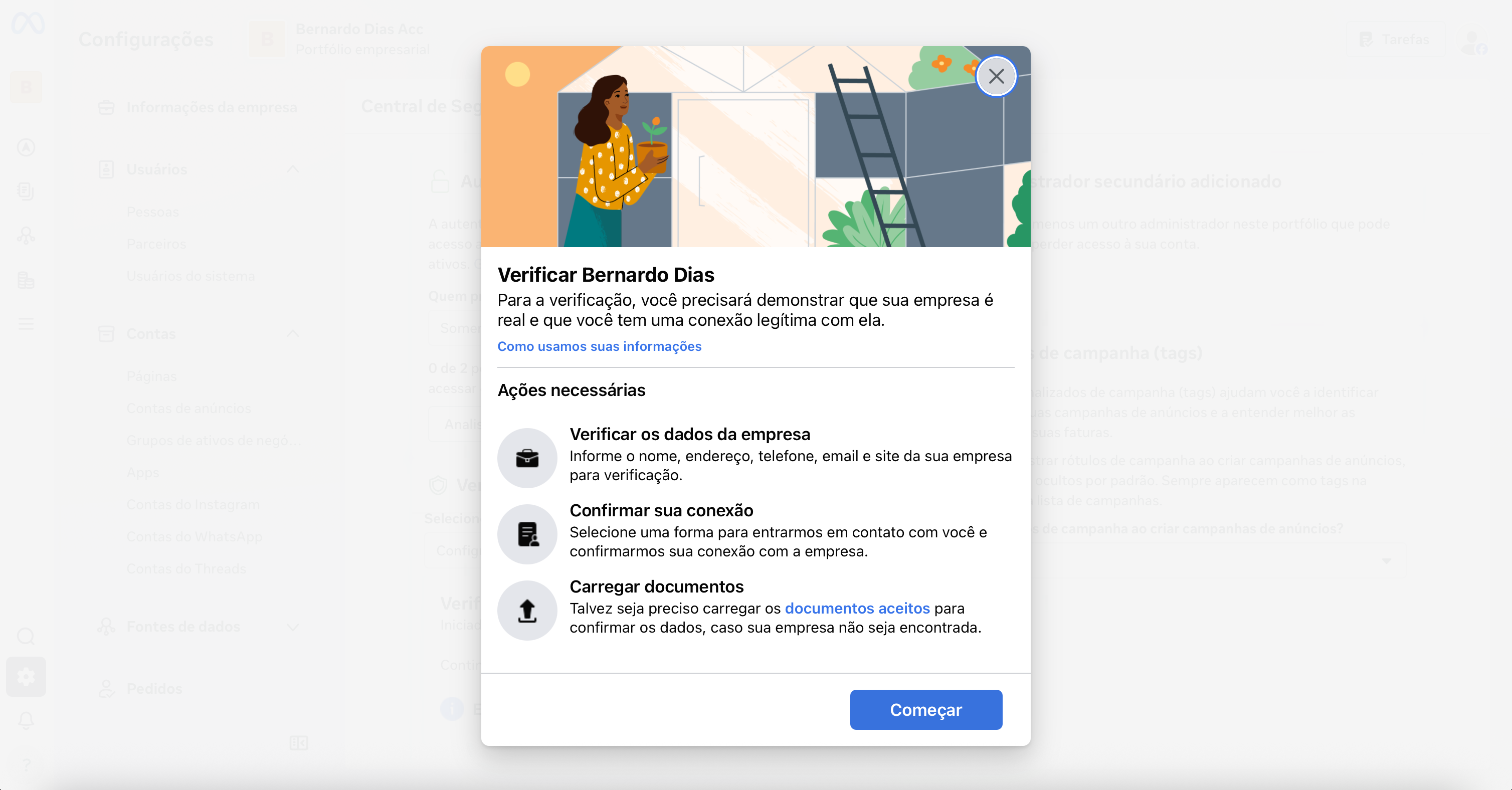
Then, in the tab that opened, click Start Verification (or Continue), as in the image below:
Start verification
Follow Meta's step-by-step process to prove your company is legitimate.
Tip: if Meta suggests companies in 'Select your company', choose one that has a phone or website you have access to. If none match, select 'My company is not listed' and proceed with document upload.
Wait for approval
Submit documents and wait for Meta's review, which usually takes up to 2 business days.
The process usually takes 2 business days. Sometimes it may need to be redone. You will be notified when completed.